
Sometimes, regardless of how well you plan your budget, you almost never seem to have find the correct business laptop that not only performs well and is reliable, but also does not cost a lot, and you can always find something wrong with it. The problem with a bad quality of a work laptop is that it may slow down your productivity and frustration in the meeting, not to mention that it may even influence your image at work and hence some unwarranted stress in your daily working life.
A good business laptop is one of the simplest and quickest methods of updating your workstation. With such a laptop, multitasking, video conferencing, and document processing will be easily done, which will go a long way to increase your productivity at the workplace.
In this article, I will list the five best business laptops for office use in India under ₹60,000 among the options I have analysed.
Disclosure: This website is part of the Amazon Associates Program. I may earn a commission from qualifying purchases at no extra cost to you.
The 6 Best Laptop for Office use under ₹60000! Here is a summary of that!
| Model | Weight (kg) | Processor | RAM | Storage | Display Size | Display Type |
| Samsung Galaxy Book4 Edge | 1.5 | Snapdragon X 8-core X1-26-100 (up to 3 GHz) | 16GB DDR5 | 512GB SSD | 15.6 in | FHD Anti-Glare, LED (touch-capable) |
| ASUS Vivobook Go 14 | 1.38 | AMD Ryzen 5 40 (4C/8T, up to 4.3 GHz) | 8GB LPDDR5 | 512GB NVMe PCIe 3.0 SSD | 14 in | FHD Anti-Glare, LED, 60Hz |
| Acer Aspire 3 | 1.7 | Intel Core i5-1334U (10-core, up to 4.6 GHz) | 8GB DDR4 (upgradable to 32GB) | 500GB NVMe SSD (upgradable to 1TB) | 15.6 in | FHD IPS, LED-backlit |
| HP Professional 14 | 1.53 | Intel Core 5 120U (10-core/12-thread, up to 5.0 GHz) | 16GB DDR4-3200 | 512GB PCIe Gen4 NVMe SSD | 14 in | FHD IPS Anti-Glare, LED, 300 nits |
| Lenovo V15 G4 | 1.65 | AMD Ryzen 5 7520U (up to 4.3 GHz) | 16GB LPDDR5 5500MHz | 512GB NVMe PCIe SSD | 15.6 in | FHD Anti-Glare, LED |
| Dell 15 DCU5250 | 1.63 | Intel Core 3 100U (6-core, up to 4.7 GHz) | 16GB DDR4 2666MHz | 512GB SSD | 15.6 in | FHD IPS, LED, 120Hz |
Top 6 business laptop under 60000 india 2026
We have tested the various laptops over the years with the varying processors, display technology, innovative features and various performance standards.
I will include the most productive models that are best suited to office use and other professional purposes in this guide. Nevertheless, to have a deeper analysis of each device, I would suggest visiting the detailed reviews on each particular device that can be found on our site.
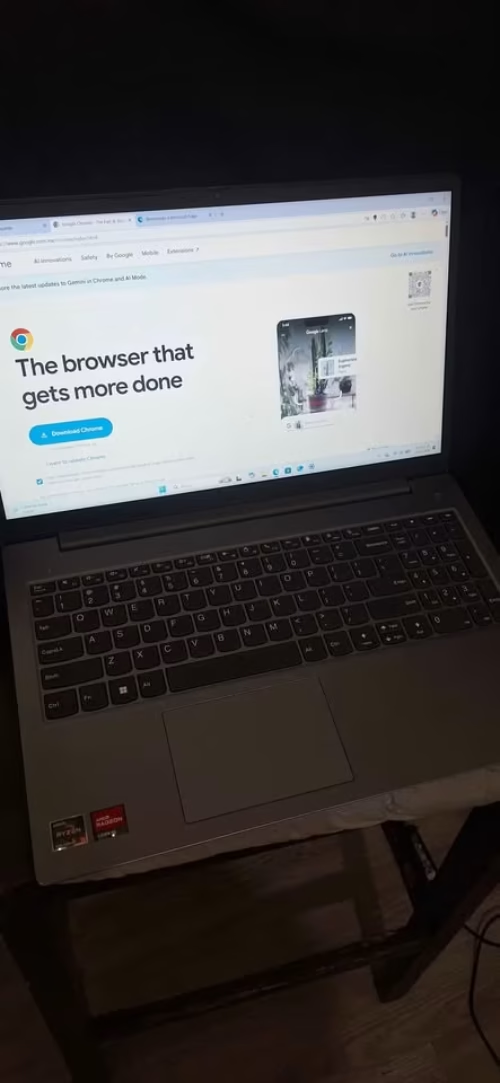
If you are working in an office environment and wanting a laptop which is simply doing the job done without any fuss, then in our recommendation the Lenovo V15 G4 is standing as the best option. This laptop is carrying an AMD Ryzen 5 7520U processor which is clocking up to 4.3 GHz, and the 16GB LPDDR5 RAM is running at the speed of 5500 MHz. Like I told before, the military-grade chassis is making it robust enough for the daily commute and also the occasional bump on the office desk.
It is coming with the pre-installed Microsoft Office 2024 and Windows 11 Home. One good thing is, these pre-installed apps are having the full license and they are not the trial versions. So because of this, you don’t have to take the tension of buying and installing the software separately, which is a hassle that most of the office-going people are preferring to avoid.
The overall performance of this laptop is good in my opinion. Its Ryzen 5 processor is handling the everyday tasks just like it is promising. In many other laptops at this same price point, you are having to close the background apps for keeping things smooth when you multitask. But in this Lenovo, that problem is very minimal, only if you are not pushing it beyond the typical office type workloads.
As we are doing with all of our laptop testing, the first task which we are running is a cold boot test. I pressed the power button and I timed it with a stopwatch, no shortcuts are done here, and I let the laptop boot fully till the desktop is coming. The Lenovo V15 G4 was going from a completely powered-off state to a fully usable desktop in around 18 seconds only, and this is happening thanks to the NVMe SSD inside.
Even though this is not a proper benchmark test, I was very keen for trying out the multitasking endurance. I opened 25 Chrome tabs, which is a mix of Google Sheets, Gmail, YouTube and few news sites also, and along with that the Microsoft Word and Excel was running at the same time simultaneously.
Only 7 tabs inside, I checked the RAM usage and I found that already it is consuming around 40% of the available memory. I was little worried that maybe it will start lagging before I am hitting the 25-tab mark, so I kept one close watch on the task manager while I am continuing to add more and more tabs.
After I opened all the 25 tabs, the laptop was still responsive and it is having a smooth workflow. I am knowing that some users maybe are considering 25 tabs as too much excessive, but personally I am preferring to simulate the realistic worst-case type scenario for the guaranteed peace of mind.
I was seriously getting impressed by how nicely the Lenovo is handling this whole workload. With 25 tabs plus the Word and Excel opened together, there was no noticeable stutter or the lag. On top of that, I did not close any of the background processes, but still it was maintaining the smooth performance if we compare it to what a laptop with only 8GB RAM will be managing in the same scenario. This is clearly proving that the 16GB DDR5 is really making the difference for the office multitasking.
Specs:
| Spec | Detail |
| Processor | AMD Ryzen 5 7520U (up to 4.3 GHz) |
| RAM | 16GB LPDDR5, 5500 MHz |
| Storage | 512GB NVMe PCIe SSD |
| Display | 15.6″ FHD (1920 x 1080), Anti-glare |
| Weight | 1.65 kg |
| OS | Windows 11 Home |
| Warranty | 1 Year Onsite |
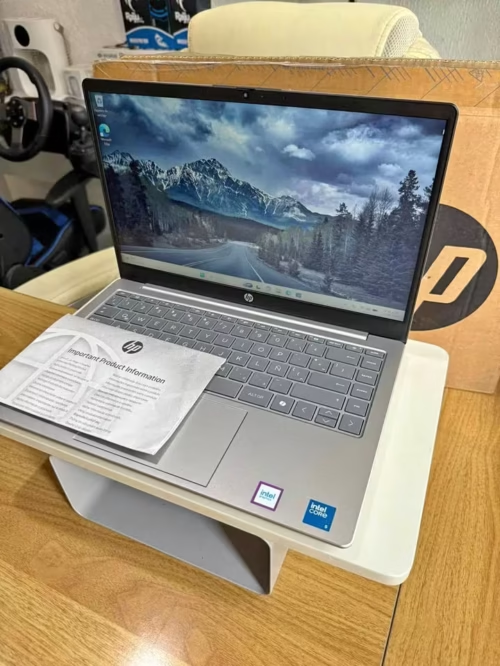
The HP Professional 14 is standing as one of the best laptops for the security-conscious office peoples, and the main reason behind this is its Windows 11 Pro operating system.
This laptop is having the Intel Core 5 120U processor with 10 cores and 12 threads inside it. The three main distinguishing points of this machine are the integrated fingerprint reader for the secure biometric login, the backlit keyboard for the comfortable typing in any lighting situation, and also the 300 nits display brightness, which is noticeably much better when you compare with the other competing options.
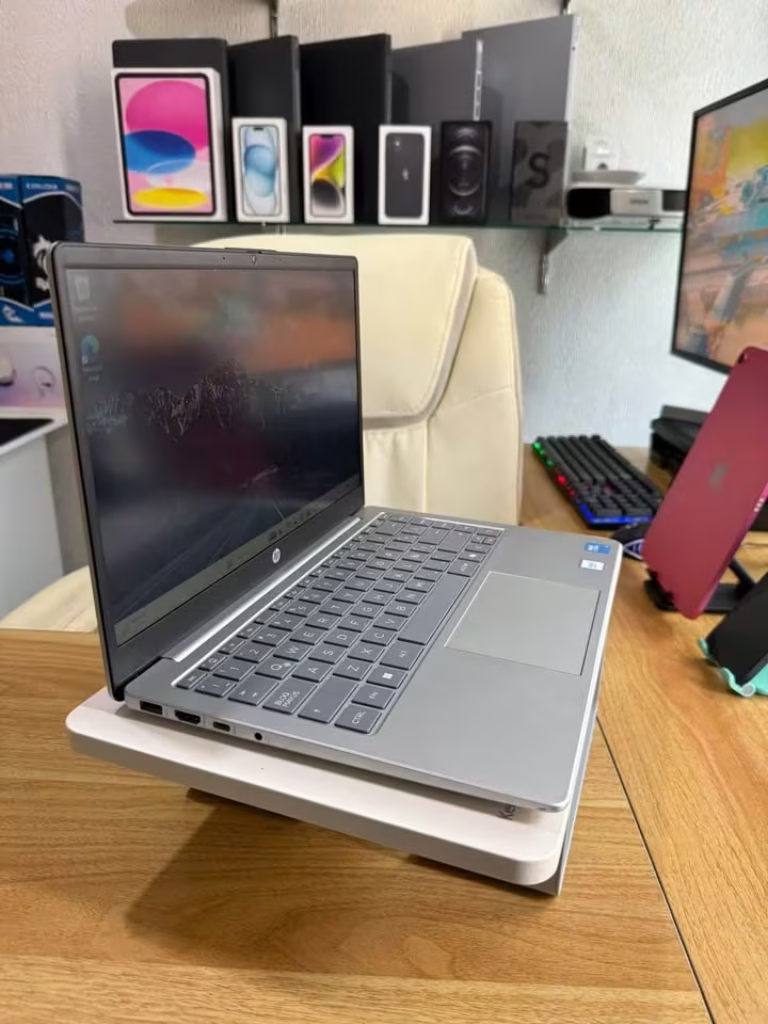
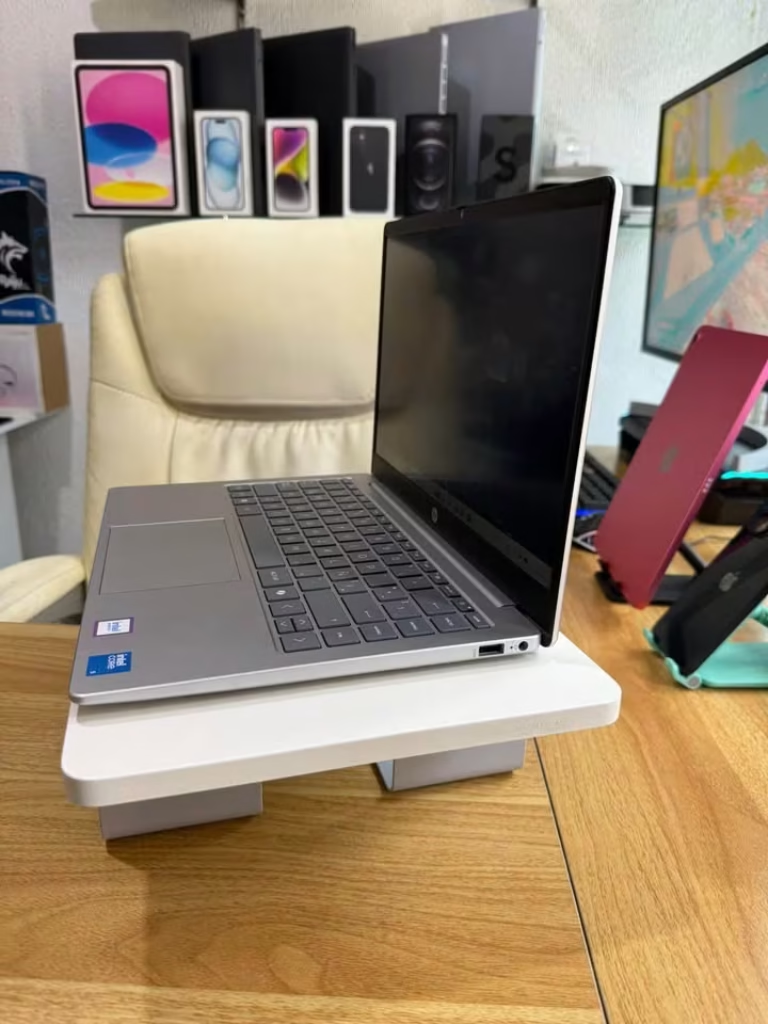
The laptop is coming with 16GB DDR4 RAM which is clocked at 3200 MHz. In the starting, I did set up one typical office workflow with Outlook, Teams and one 50MB Excel spreadsheet, all opened together. Same like the previous option, this laptop is also quick and it can handle the multiple office applications without showing any sign of strain.
I decided that I will check how it is handling the things at the 30-minute mark of the continuous usage, and I am glad that I did it, because the fan was barely audible even under the moderate load. So then I pushed it more further and added one Zoom call along with the screen sharing on top.
After another 15 minutes I checked it one more time, and the laptop was performing perfectly fine. It was nice and cool to the touch on the keyboard, and there was a good level of responsiveness across all the apps. No thermal throttling was detected at all.
From running the office applications to the fully loaded multitasking, and all this in just few minutes only. This is one thing which I have only previously experienced with the more expensive business laptops, so I am already getting impressed by it.
Now actually I should not have been so surprised, because the Intel Core 5 120U is really packing a lot of cores for this particular price segment. That much is expected only. But for one quick reality check of the sustained performance, I was not fully prepared for how nicely it was holding up.
So after that I tried to run one heavy PowerPoint presentation which is having the embedded videos inside it, just to see whether that will push the machine or not. These files were fairly large ones, around 120MB after all.
But even after the 30 minutes of continuous presenting, the performance drop was very minimal only. The laptop is really holding its own ground, like how it should, and there are no shortcuts taken here anywhere.
Instead of stopping, I decided that I will test one another scenario. I opened the fingerprint reader login, swiped my finger across the sensor, and then I set the timer for 15 attempts just to check the consistency of it.
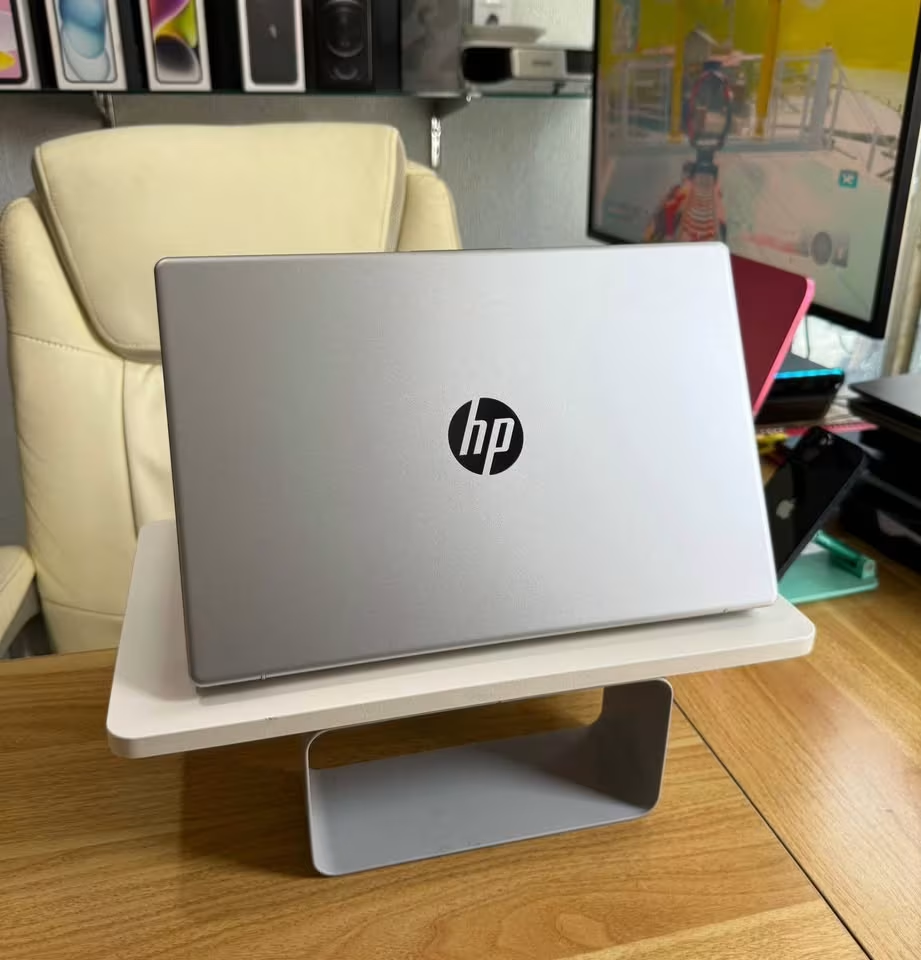
This one worked perfectly. After doing the testing across the multiple sessions and also with the different finger positions, I was getting super quick and consistent logins, which registered accurately each and every single time. They are not failing unless your fingers are wet, so this is truly a case of set it up once and then forget about the passwords fully. But they are making the most secure and also the most convenient login method, and honestly the fingerprint reader is really giving that premium feel to the whole thing.
Specs:
| Spec | Detail |
| Processor | Intel Core 5 120U (up to 5.0 GHz) |
| RAM | 16GB DDR4, 3200 MHz |
| Storage | 512GB PCIe Gen4 NVMe SSD |
| Display | 14″ FHD (1920 x 1080), IPS, 300 nits |
| Weight | 1.53 kg |
| OS | Windows 11 Pro |
| Warranty | 1 Year Onsite |
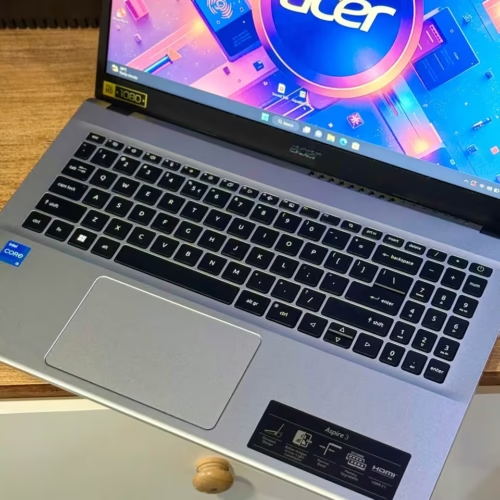
The Acer Aspire 3 is coming with an Intel Core i5-1334U processor that has 10 cores and clocking up to 4.6 GHz. Its RAM is 8GB DDR4 type, which you can upgrade till 32GB by using two SO-DIMM modules, more or less same like how a desktop is allowing you. The Aspire 3 is having a 15.6-inch FHD IPS display with LED backlighting. Also it is having 4 USB ports, that is 1x USB Type-C, 1x USB 3.2 and 2x USB 3.0. Since this one is having upgradable RAM, you can start from 8GB only and then later on add more when your workload is becoming heavier. So either you upgrade till 16GB for smooth multitasking, or go up to 32GB for future-proofing, or simply keep the 8GB as it is for the lighter office type tasks.
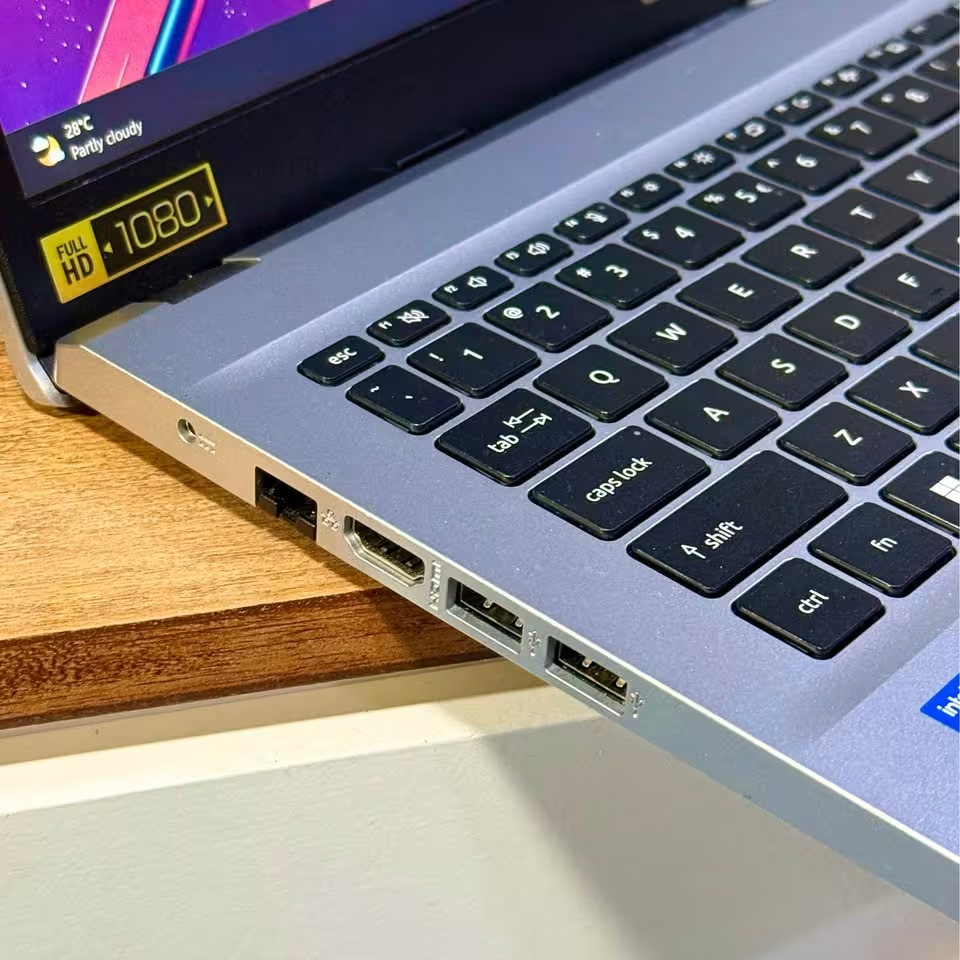
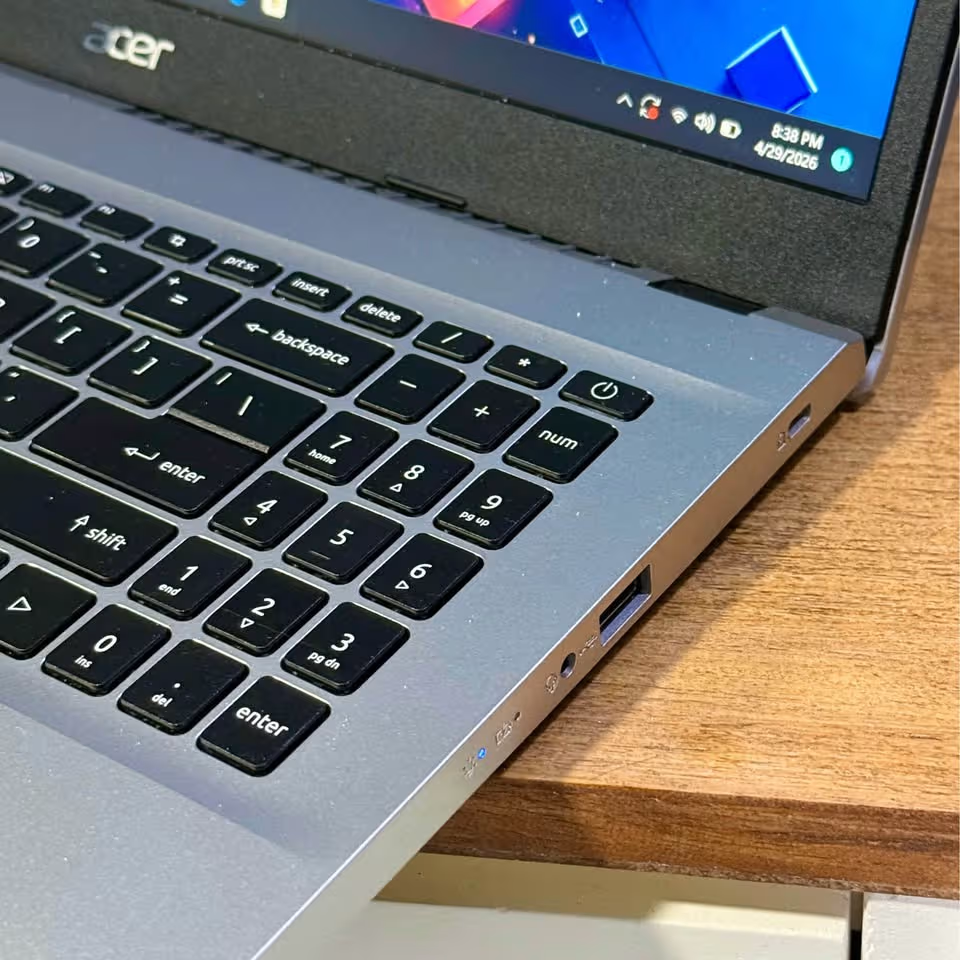
The smaller 8GB RAM configuration is working fine for basic office usage, and the 10 cores of the processor are compensating well for it, so even on the stock configuration you are able to handle a reasonable amount of multitasking.
If this is not your first laptop, then the Acer Aspire 3 can be a good option for you to consider. Most probably you are already having a good idea about your own RAM requirement, so accordingly you can do the upgrade. I am saying this because the stock 8GB RAM is finishing very quickly during multitasking, and this is leaving the applications sluggish. For one example, Chrome with 15 tabs, plus Outlook and Excel, all of them running at same time is consuming around 7.2GB of RAM, which anybody with common sense will understand is cutting it too close.
Nowadays a lot of laptops are boasting that they can handle creative workloads also, which is a thing that can become quite useful for occasional presentation work. Now the Acer Aspire 3 is not promoting this as one of its main strength, so I was curious to check how nicely it is coping with tasks like editing one brief marketing presentation with some embedded images inside, which is a very common office task that you can use a laptop for to quickly whip up.
You will also be noticing that this laptop is taking slightly more time to launch the heavy applications if you compare with Lenovo, even though Acer is claiming a competitive processor. One more disadvantage is that the 8GB RAM is starting to feel constrained when you switch between multiple office apps very fast, something which you are not experiencing in Lenovo and HP.
Because the laptop was shipped with only 8GB, the whole process of heavy multitasking was involving a little bit of trial and error for managing the open applications. I found that 10 Chrome tabs was comfortable, and it would have handled even more eventually, but the advantage of having a 10-core processor instead of fewer cores is the speed, and after 20 tabs it was starting to slow down things. So I found that 15 tabs was around the sweet spot, and at that load it was taking around 3 seconds to switch in between them.
But the important point is that it worked, and once I had closed few background processes and optimised the workflow, my experience became really smooth.
Specs:
| Spec | Detail |
| Processor | Intel Core i5-1334U (up to 4.6 GHz, 10 cores) |
| RAM | 8GB DDR4 (Upgradable to 32GB) |
| Storage | 500GB PCIe Gen3 NVMe SSD |
| Display | 15.6″ FHD (1920 x 1080), IPS, LED-backlit |
| Weight | 1.7 kg |
| OS | Windows 11 Home |
| Warranty | 1 Year |
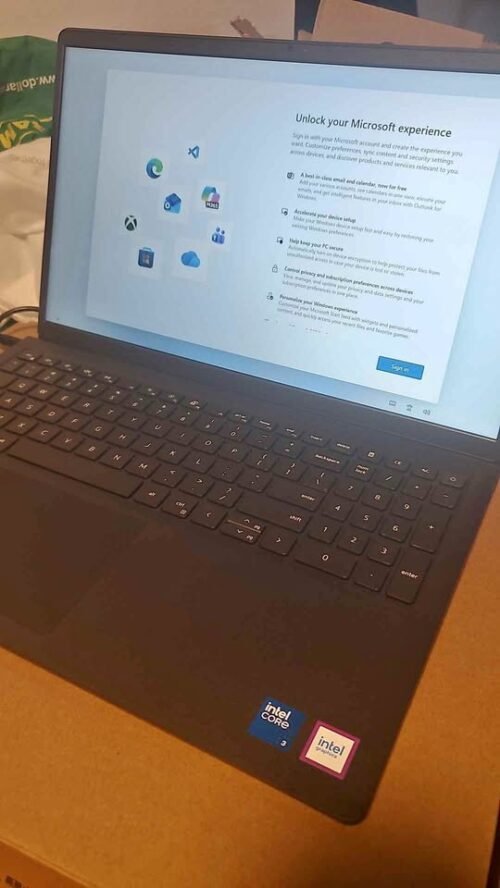
With the Intel Core 3 100U processor and a generous 16GB DDR4 RAM, the Dell 15 is one of the most budget-friendly option that we can recommend to you.
It is coming with a 120Hz FHD display which use IPS technology. This 120Hz refresh rate is making the scrolling through long Word documents, Excel sheets and also web pages feel much smoother when you compare it with the normal 60Hz panels that other competing laptops are having.
Unlike the entry-level laptops which many times comes with only 8GB RAM and forcing you to do upgrade later, the Dell 15 is giving you 16GB right from the box itself, so there is much more headroom for the multitasking part.
The 15.6-inch display is giving a comfortable viewing experience, and even the smaller text inside spreadsheets is looking sharp, so even the long working sessions are staying comfortable for the eyes.
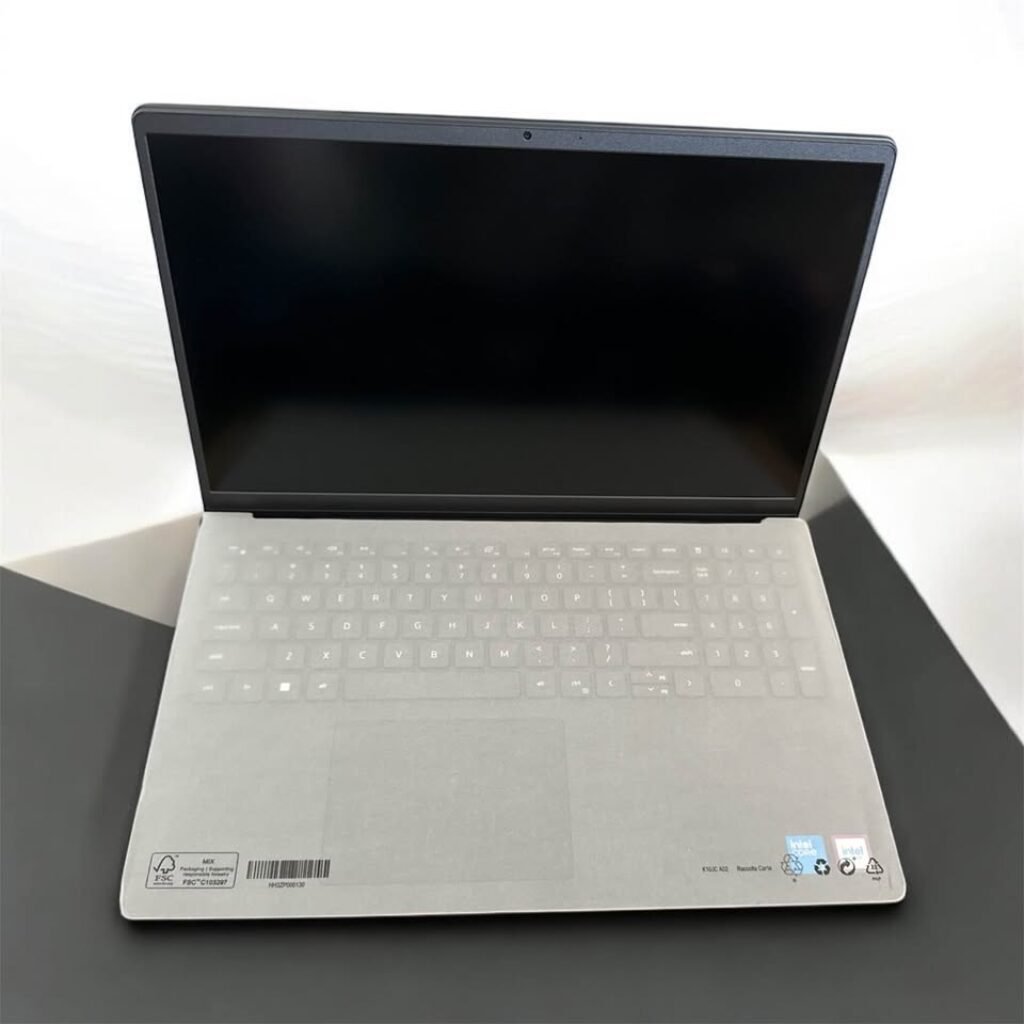
This laptop is not having a backlit keyboard like the HP Professional one, so you have to keep in mind about your lighting when you are working in late night – some of the costlier models are offering this feature – but it is easy enough to manage the work with one desk lamp, so I personally did not feel this is a very big drawback.
The 512GB SSD is also big enough that you can keep years of office documents in one go. Unlike the other options, here the 120Hz display is the main selling point and that smooth scrolling experience is something you can genuinely notice.
I have used this laptop for the basic spreadsheet work which was going well, but because my files were little bit heavier with pivot tables and charts, I did notice a small delay when the formulas were recalculating in the sheets having more than 10,000 rows. But after that they were manageable, with a really responsive navigation and a good clarity on the display side.
One downside of this laptop is that it is not seeming to have the Bluetooth connectivity, so you have to depend on wired peripherals or use one USB Bluetooth dongle for connecting the wireless headphones during the video calls.
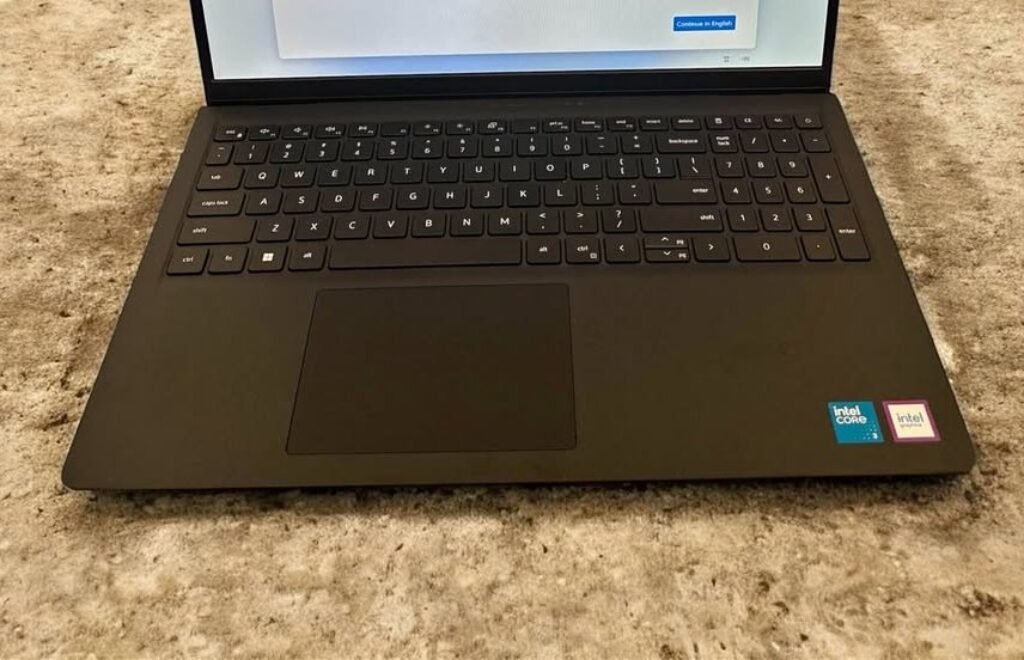
The computing performance is okay-okay for word processing, web browsing, email and the basic spreadsheets. But when you run the heavier applications like the big PowerPoint presentations with transitions or many Excel workbooks at the same time, then it is becoming little bit sluggish.
Specs:
| Spec | Detail |
| Processor | Intel Core 3 100U (up to 4.7 GHz, 6 cores) |
| RAM | 16GB DDR4, 2666 MHz |
| Storage | 512GB SSD |
| Display | 15.6″ FHD (1920 x 1080), 120Hz, IPS, Anti-glare |
| Weight | 1.63 kg |
| OS | Windows 11 Home |
| Warranty | 1 Year |
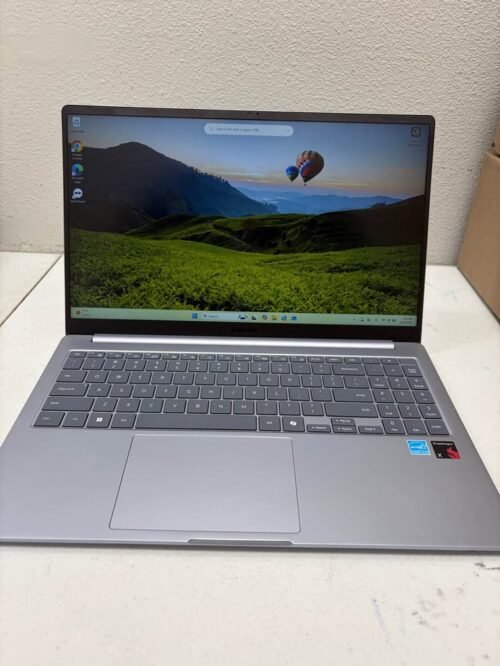
Coming with a Snapdragon X 8-core processor and 16GB DDR5 RAM, the Samsung Galaxy Book4 Edge is having an innovative architecture. One of the main advantage here is that you are getting an integrated NPU which is capable of 45 TOPS, and this accelerates the AI-powered features like Copilot+ for the drafting of emails, summarising the documents and generating content directly on the device itself.
This laptop is having Wi-Fi 7 support and also Bluetooth connectivity. They are working alongside the USB-C 4.0, USB-A 3.2 and HDMI 2.1 ports. Same like every other laptop in the list, the display is FHD at 1920 x 1080 resolution which is coming with anti-glare coating.
When we talk about the performance, because of the ARM-based Snapdragon architecture, it is taking a bit different approach for running the Windows applications if we compare to other options in the list. For the example, most of the native Office apps and modern applications are running perfectly. Due to this, there is no noticeable difference in the day-to-day office work. When we did try various office workloads, we found that the native ARM apps were running buttery smooth. The Microsoft 365 suite is working flawlessly. But when the matter comes to running some of the older 32-bit legacy software, it is depending on emulation – which is something we did not faced in other laptops that having Intel or AMD processors.
While all the other options are having a standard clamshell design, the Samsung Galaxy Book4 Edge is having a sleek and premium finish in the Sapphire Blue colour. But the real advantage is lying in its exceptional battery life. The efficient Snapdragon chip is sipping the power so gently that a full workday on the single charge is very much achievable.
Same like Dell, Samsung also is having a display which is only FHD at 1080p. So for the price of ₹64,450, the display resolution is feeling a bit underwhelming. One could expect at least a 2K panel on this price point.
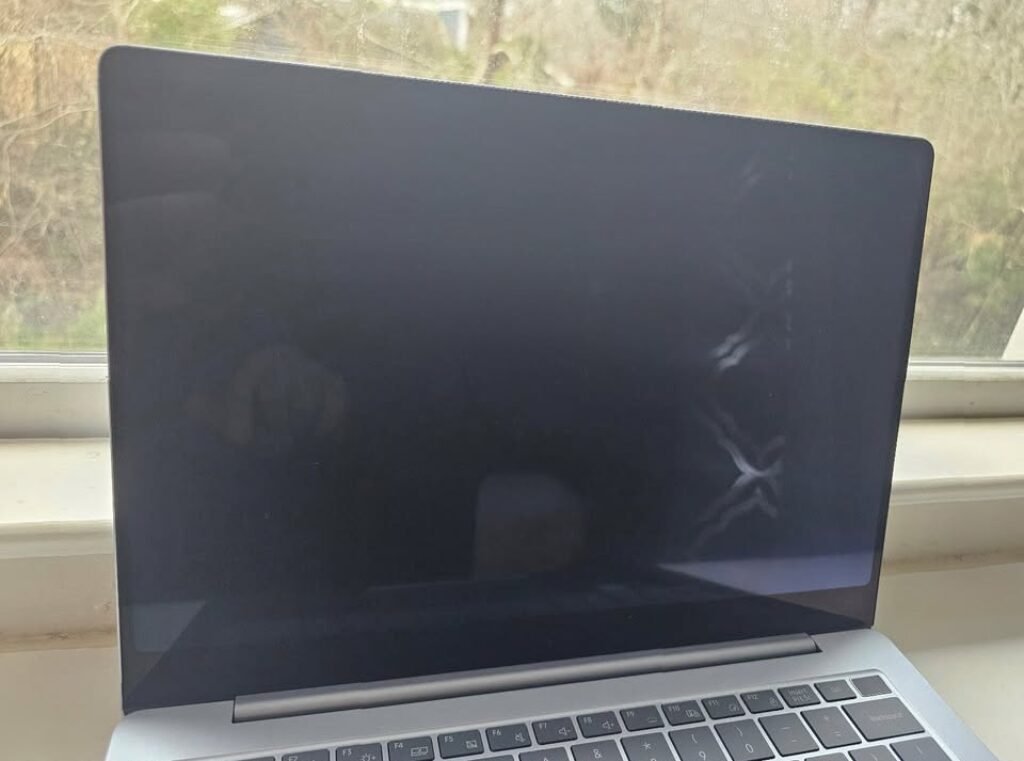
I did open 20 Chrome tabs along with the Microsoft Word and let them keep running for one hour. Following the typical office workflow, I manually checked the battery drain in every 15 minutes. In just under 4 hours of the moderate use, the battery had only dropped to 55%. I was seriously impressed with the battery efficiency, specially because I did not needed to carry my charger to the meetings like I would do if I was using an Intel-based laptop in the same workload scenario, which overall is saving me the hassle and the weight of carrying an adapter.
Finally, I did test the Copilot+ AI feature. I am a big fan of the AI-assisted writing, however, when I have used the similar features on other laptops it is sometimes processing slowly and can break the workflow which becomes annoying.
I used the Copilot for summarising a 15-page report just to test how the NPU is handling the AI workloads. I fed the document and then waited for the summary. The NPU processed the request and the summary got generated in under 8 seconds. At 5 seconds in, I checked the output and it had already started generating the coherent bullet points. I gave the result a review to see if any inaccuracies are there and to my surprise, there weren’t – winner!
The AI summaries were getting ready before what I was expecting, all of the key points had been captured and the tone was still professional and also accurate.
Overall, when the matter comes to the raw office performance, it is matching the Lenovo and HP. But the price premium and the potential software compatibility issues are holding it back from becoming the top recommendation.
Specs:
| Spec | Detail |
| Processor | Qualcomm Snapdragon X 8-core (up to 3 GHz) |
| RAM | 16GB DDR5 |
| Storage | 512GB SSD |
| Display | 15.6″ FHD (1920 x 1080), Anti-glare |
| Weight | ~1.5 kg |
| OS | Windows 11 Home |
| Warranty | 1 Year |
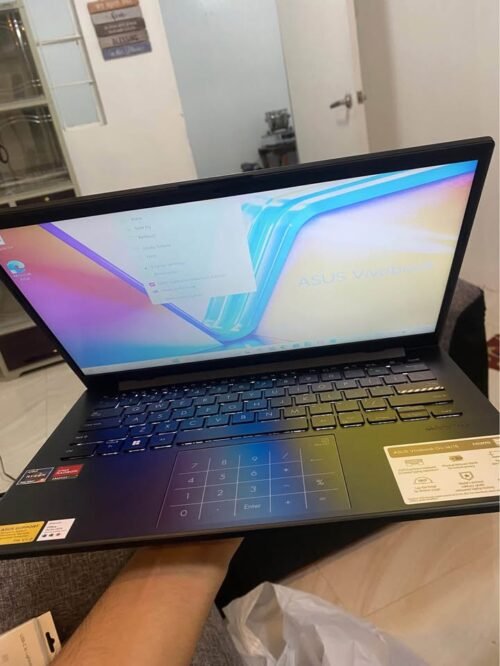
The ASUS Vivobook Go 14 is more or less similar with the other options in this list when we talk about the basic office tasks. It is coming with an AMD Ryzen 5 40 processor and 8GB LPDDR5 RAM. Although the RAM is a bit lesser than the other options, still you can run the standard office workloads at a reasonable speed. One thing to keep in the mind, the RAM here is soldered type and it is not upgradable at all.
The thing which should be noted here is that, unlike the previous options in the list which are having 15.6-inch displays, this particular laptop is carrying a compact 14-inch screen. So there is coming a slight trade-off in the screen real estate when you are working on the wide spreadsheets. But other than this, the smaller form factor is making it extremely portable, and you will surely appreciate it during your daily commute time.
The display performance is fairly okay for the purpose. While using the standard office applications, the text is appearing sharp and the colours are also acceptable for the document related work. But when the matter comes to reviewing the colour-sensitive marketing materials or the presentations, then we are recommending against depending on this display. Because you are taking the risk of seeing washed-out colours, while in reality the actual file is looking different on some better screen. Instead of that, you could rather connect it to an external monitor through the HDMI 1.4 port for doing the accurate colour work.
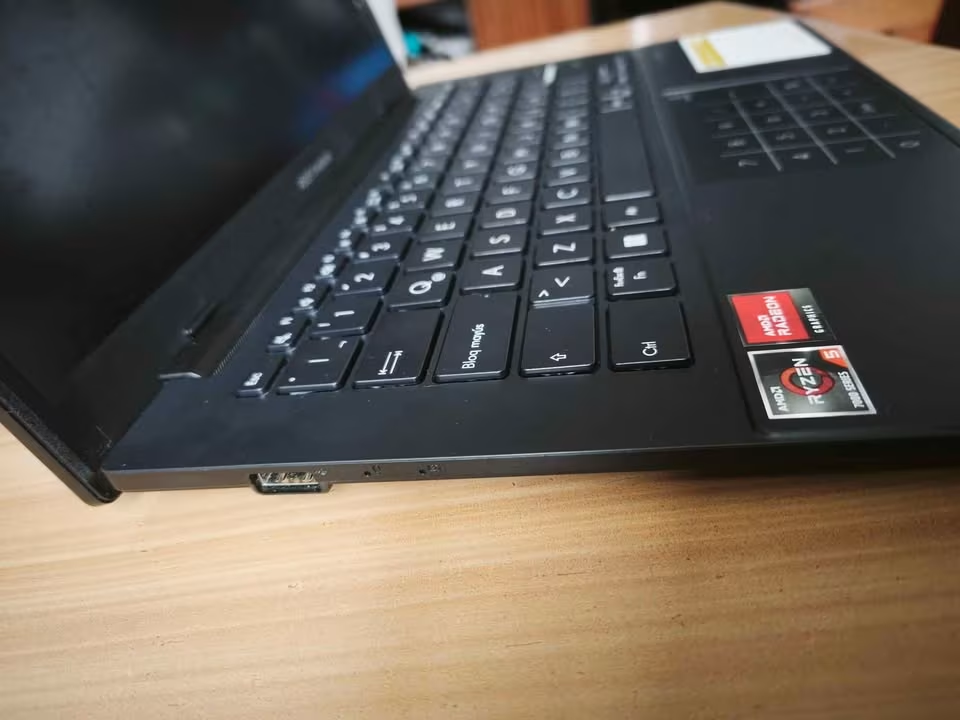
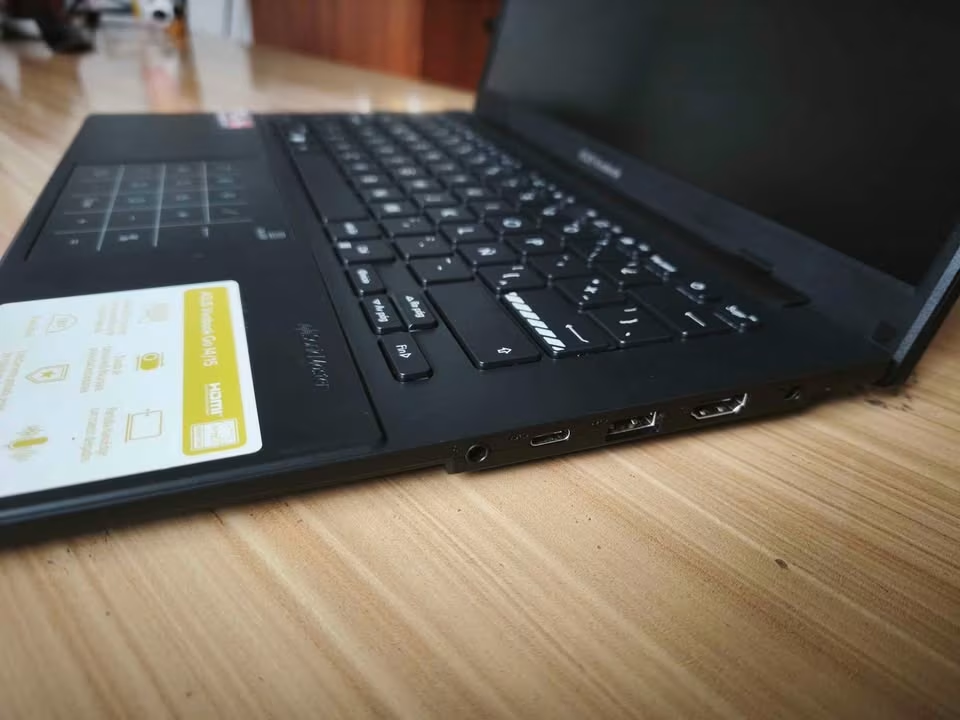
One thing which really amazed me about this laptop is that, it can be carried for the extended travel without taking any tension about the weight, and at the same time it is handling the regular office tasks also. So I decided to give it a try with a full day’s workflow, just to see whether it will sustain the performance across 8 hours or not. I did the setup of the laptop as per my usual office routine and used the same applications which I would normally run on a full-size machine. The good thing about this laptop is that you don’t have to carry any special adapters, because the USB-C and USB-A ports are covering most of the connectivity needs, keeping the size and weight in mind obviously. I kept the brightness at 70% and the result was exactly what I was looking for. It gave a responsive experience the whole day with adequate battery backup, though I had to put it on charge one time around the 5-hour mark.
To check that how this laptop is coping up with the video conferencing, we decided to run a Teams call having 6 participants along with the screen sharing. Following the workflow which is typical in the Indian offices, first we opened the meeting link and then waited around 3 minutes so that all the participants can join. After that, using the combination of screen sharing, chat and the camera all together at the same time, we ran the call for 45 minutes and put the laptop under proper pressure. After these 45 minutes the call quality was staying consistent, and more importantly, there were no frame drops or any audio glitches happening. Even after not closing the background apps, which you may do on a lower-spec machine, the performance was steady from start to end, with a responsive screen share also. Plus the privacy shutter on the webcam is adding a nice security touch, so the laptop itself is feeling thoughtfully designed. Decent one.
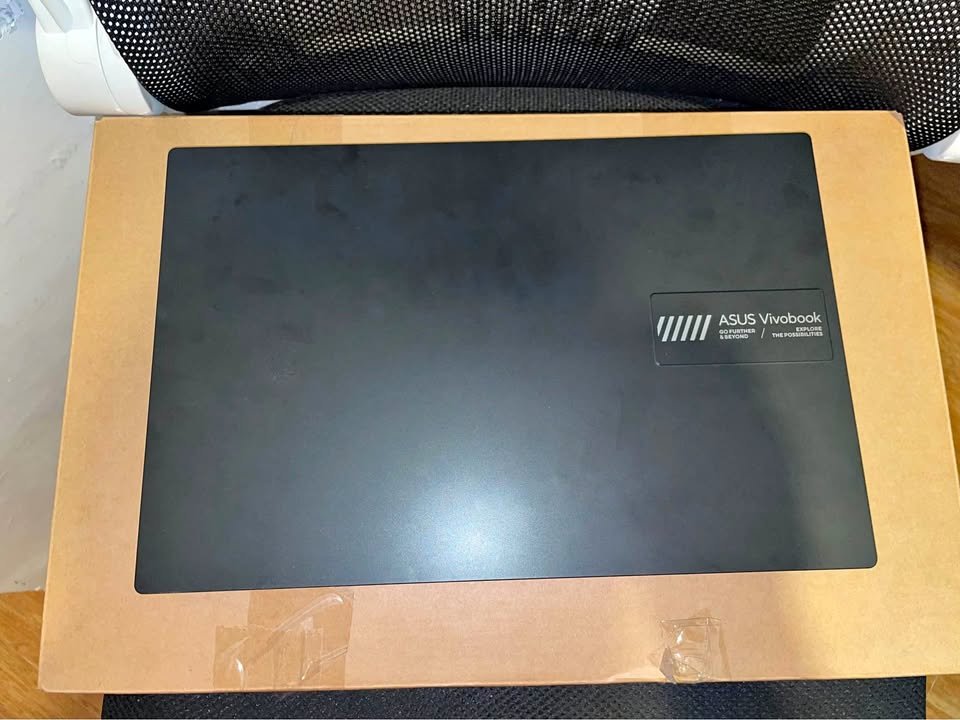
Overall, this laptop is fairly easy to use as well as to carry around. The limited 8GB non-upgradable RAM can become a setback for those users who are doing heavy multitasking. But you can manage around it by keeping a check on your open applications and taking the help of browser tab management extensions.
Specs:
| Spec | Detail |
| Processor | AMD Ryzen 5 40 (up to 4.3 GHz, 4 cores) |
| RAM | 8GB LPDDR5 (non-upgradable) |
| Storage | 512GB M.2 NVMe PCIe 3.0 SSD |
| Display | 14″ FHD (1920 x 1080), Anti-glare, 60Hz |
| Weight | 1.38 kg |
| OS | Windows 11 Home |
| Warranty | 1 Year |
Side-by-Side Comparison of the Best Laptops for Office Use Under ₹60,000
| Spec | Samsung Galaxy Book4 Edge | ASUS Vivobook Go 14 | Acer Aspire 3 | HP Professional 14 | Lenovo V15 G4 | Dell 15 DCU5250 |
| Weight (kg) | 1.5 | 1.38 | 1.7 | 1.53 | 1.65 | 1.63 |
| Processor | Snapdragon X 8-core X1-26-100 (up to 3 GHz) | AMD Ryzen 5 40 (4C/8T, up to 4.3 GHz) | Intel Core i5-1334U (10-core, up to 4.6 GHz) | Intel Core 5 120U (10-core/12-thread, up to 5.0 GHz) | AMD Ryzen 5 7520U (up to 4.3 GHz) | Intel Core 3 100U (6-core, up to 4.7 GHz) |
| RAM | 16GB DDR5 | 8GB LPDDR5 | 8GB DDR4 (upgradable to 32GB) | 16GB DDR4-3200 | 16GB LPDDR5 5500MHz | 16GB DDR4 2666MHz |
| Storage | 512GB SSD | 512GB NVMe PCIe 3.0 SSD | 500GB NVMe SSD (upgradable to 1TB) | 512GB PCIe Gen4 NVMe SSD | 512GB NVMe PCIe SSD | 512GB SSD |
| Display Size | 15.6 in | 14 in | 15.6 in | 14 in | 15.6 in | 15.6 in |
| Display Type | FHD Anti-Glare, LED (touch-capable) | FHD Anti-Glare, LED, 60Hz | FHD IPS, LED-backlit | FHD IPS Anti-Glare, LED, 300 nits | FHD Anti-Glare, LED | FHD IPS, LED, 120Hz |
| Operating System | Windows 11 Home | Windows 11 Home | Windows 11 Home | Windows 11 Pro | Windows 11 Home | Windows 11 Home |
| Webcam | Yes (2MP) | Yes (720p, privacy shutter) | Yes (HD) | Yes (front-facing) | Yes | Yes |
| Wireless | Wi-Fi 7 + Bluetooth | Wi-Fi 6E + Bluetooth 5.3 | Wi-Fi 6 + Bluetooth 5.1 | Wi-Fi 6 + Bluetooth 5.4 | Wi-Fi 6 + Bluetooth 5.0 | Wi-Fi 6 + Bluetooth 5.0 |
| Battery Life | 61.2 Wh | 42Wh | 54Wh | 41Wh | 47Wh | 41Wh |
| Keyboard | Chiclet | Chiclet | Standard | Full-size backlit w/ image sensor | Numeric keypad | Standard |
| USB-C Ports | 2 | 1 | 1 | 1 | 1 | 2 |
| USB-A Ports | 1 | 2 | 3 | 2 | 2 | 2 |
| HDMI | 1 | 1 | 1 | 1 | 1 | 1 |
| Ethernet (RJ-45) | No | No | Yes | No | Yes | No |
| Performance Rating (/10) | 7.5 | 7 | 7 | 8 | 6.5 | 6.5 |
| Portability Rating (/10) | 8 | 9 | 6.5 | 8 | 7 | 7 |
| Value Rating (/10) | 7 | 6.5 | 8.5 | 8 | 8 | 7.5 |
FAQ on Laptops for Office Use
Definitely yes. 16GB RAM is more than enough to perform standard office duties such as editing of documents, use of multiple tabs in web browsing, and use of video conferencing facility as well as Microsoft Office application working simultaneously. The average office worker will not require over 16GB of memory unless he or she operates programmes that are specific to the job, such as video editing or data analysis programmes.
Both the Intel and AMD processors are very good in office environments. Intel Core i5 processors (in particular 13 th generation and later) can perform very well in single thread performance and hence it is beneficial to applications such as Microsoft office. AMD Ryzen 5 processors have very good multi-threaded performance and generally have better battery efficiency. You will not see much difference between the two in most of your office chores.
It will vary according to your needs. The Windows 11 Pro should be used when you have to be part of a corporate domain, need BitLocker encrypting drives, are a host on Remote Desktop, or need virtualization based on Hyper-V. Windows 11 Home can also be used by individual professionals and small businesses, which typically do not need anything more than that to go about their daily routine in the office.
The quality on display also plays a great role in the comfort your working hours. I suggest having a minimum resolution of Full HD (1920 x 1080) display with an IPS panel to provide more acceptable viewing angles and colour quality. The use of anti-glare coating is necessary to minimise eye strain. A laptop with a good display is an investment to consider by the professionals working 8 or more hours a day.
The battery life will be quite different depending on the usage, display brightness, and running applications. In general, when it comes to an average office job, where one might be required to edit documents and browse the web, the laptops in this price bracket are expected to last between 4-8 hours of battery life. The Vivobook Go 14 by ASUS has the highest battery life in this list of about 8 hours.
Indeed, Intel (UHD or Iris Xe) and AMD (Radeon) integrated graphics are good enough to support office work, such as presentations, a simple photo editor, video conferencing, and even light video playback. You will need some specific graphics only in case you are going to conduct serious video editing or 3D modelling or game.
Final Thoughts
One of the most frequent cases of laptop usage and the one that should be properly considered when selecting the appropriate device is office work, associated with the use of different productivity apps, video-conferencing, and multi-tasking.
The side effects of using a laptop with low power over a long period of time may include frustration, missed deadline, low quality video calls, and reduced productivity. Because of all these reasons, and many others, I would strongly suggest buying a good laptop to anyone in an office setting, particularly when one does not have an efficient laptop to deal with their daily workload.
Actually, when you pick any laptop in the list of the best laptops to use in the office, you cannot be wrong. Each of the devices in this list is the best in the category, and they provide a plethora of features with the most important and the most valuable aspect being the consistent performance on a professional level with minimum exhibits of any kind of hassle.
Had I been asked to select the most suitable laptop to use in the office at a price of less than 60,000, I would have definitely chosen the HP 250 G10. The main basis of my choice is set in the following aspects where the first priority is given to the performance of the processor, the quality of the display and the overall connectivity.
The HP 250 G10 gives a balance between its performance, feature, and reliability. Its Intel core i5 (13 th generation) is powerful enough to perform intensive office work, Full HD IPS display is comfortable to work long hours, and the port selection is extensive which means that it can be used with different office peripherals and configurations.